
This guide covers everything you need to build and submit HTML creatives that run correctly in Liftoff's ad environment - from file structure to click handling. Follow these requirements before submitting your creative to avoid integration issues. Developers are responsible for ensuring their assets conform to these requirements prior to submission.
Getting started
Folder structure
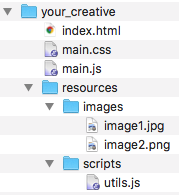
Liftoff accepts creatives as either a single HTML file or a zip file containing a single folder with all the assets the creative needs to function. This includes — but is not limited to — image, video, sound, HTML, JavaScript, CSS, and font files. Liftoff hosts these files on its content delivery network (CDN).
A creative's file structure could look like this:
Entry point requirements
Liftoff's system needs to detect a clear entry point for your creative. You can indicate this in one of the following ways:
- Upload a single HTML file directly (no zip required).
- Include a single HTML file in the root of your zip folder — it will be used as the entry point regardless of filename.
- If your zip contains multiple HTML files in the root folder, one must be named index.html.
Filenames within the zip must use ASCII characters only. Non-ASCII characters in filenames will cause your creative to fail.
Loading assets
Always reference assets using relative paths, for example
./images/logo.png or js/app.js. Do not use absolute paths (starting with /) or absolute URLs (starting with http:// or https://).
⚠️ Filenames are case-sensitive — the case used in your code must exactly match the case of the actual file, as assets are hosted on case-sensitive servers.
Progressive loading
Only load what's needed to show the first screen or respond to the first user interaction. Deferring secondary assets — such as background music or end screens — until they're actually needed reduces load time and improves the experience for users on slower connections.
❌ Inefficient load — what to avoid:
HTML loads → browser fetches a large JS bundle → parses and executes it → JS then requests ~3MB of assets (images, audio, etc.) → game renders only after all of the above completes. This approach delays the first visible frame and risks slow or failed loads on mobile.
✅ Progressive load — recommended approach:
HTML loads → small bootstrap bundle (10-20KB) renders something visible immediately → main bundle and assets load in the background on demand → game enhances progressively as assets arrive.
Using HTML tags instead of JavaScript calls where possible helps the browser prioritize assets based on what needs to appear first.
Sound triggering
Only trigger sound in response to a user interaction such as a tap or click. Do not start audio automatically on page load. This ensures compatibility with autoplay restrictions on mobile devices and avoids your creative being rejected.
Respecting CORS for web workers
Assets like JavaScript files passed to new Worker() may fail to load if the CDN does not provide CORS headers. Note that Liftoff's CDN does not expose Access-Control-Allow-Origin headers for JS files, as cross-origin script execution poses a security risk.
To avoid these issues, use the following approach:
- Test CORS access first, then fall back to a
Blobif needed
fetch(asset.url, { method: "HEAD" })
.then((res) => (res.ok ? useDirectUrl() : fallbackToBlob()))
.catch(() => fallbackToBlob());- Use a Blob URL as a fallback
function fallbackToBlob() {
  const blob = new Blob([App.Assets["FSolver.js"].data], {
    type: "application/javascript",
  });
  const worker = new Worker(URL.createObjectURL(blob));
}⚠️ The Blob technique does not support importing external scripts from other origins.
Handling MRAID load sequence
When your HTML loads, MRAID may not be ready yet. Always check its current state first. If it's still loading, wait for the ready event before setting up click handlers or calling any MRAID functions. If it's already ready, proceed immediately.
function onMRAIDReady() {
  initializeCTA();
  initializePlayable();
}


if (mraid.getState() === "loading") {
  // If mraid is still loading, wait for the 'ready' event
  mraid.addEventListener("ready", onMRAIDReady);
} else {
  onMRAIDReady();
}function initializePlayable() {
if (mraid.viewable) {
App.startGame();
} else {
let didStart = false;
mraid.addEventListener("viewableChange", function (isViewable) {
if (isViewable && !didStart) {
didStart = true;
App.startGame();
}
});
}
}A few additional best practices:
- Log all MRAID lifecycle events (ready, viewableChange, etc.) to make debugging easier.
- Avoid registering viewableChange listeners more than once — clean up listeners carefully.
- Design for graceful degradation: your creative should never hang due to a missing MRAID event.
Handling clicks
To send a user to a clickthrough destination such as an app store or external website, use mraid.open (preferred) or window.open. Do not use window.location. Users may only be taken to an external destination following a deliberate interaction with the creative.
Always await the API to be ready before calling open functions. Calling these functions before the respective API is ready will cause unresponsive or unattributed clicks.
✅ Using the Liftoff API:
if (window.Liftoff && window.Liftoff.ready) {
  window.Liftoff.ready(function () {
    document.getElementById("cta-button").addEventListener("click", function () {
      window.Liftoff.open();
    });
  });
}
✅ Using MRAID directly:
function initializeCTA() {
  const ctaButton = document.getElementById("cta-button");
  ctaButton.addEventListener("click", function () {
    // CTA - Liftoff intercepts this call and injects the destination URL
    mraid.open();
  });
}
❌ Calling open() before the API is ready:
// Don't do this — open() may fail if the API isn't ready yet
document.getElementById("cta-button").addEventListener("click", function () {
  window.Liftoff.open();
  // or
  mraid.open();
});
Requirements
Filenames
- Use ASCII characters only in all filenames.
- Do not use UTF-8 encoded filenames — these will cause asset loading failures.
- Filenames are case-sensitive. Make sure filenames in your code exactly match the filenames in your directory.
IFrames
Do not use <iframe> elements. Liftoff's serving environment does not support them, and their use will cause your creative to fail.
Sizing and layout
Each impression is assigned a standard size based on information provided by the exchange. Every impression is matched with the closest standard size, which may not equal the actual rendered size on a device. For example, an impression on a device with a 375x812 px screen maps to the standard 320x480 px size.
Liftoff currently supports the following standard sizes (width x height in pixels):
| Format | Dimension |
|---|---|
| Full-screen phone portrait | 320x480 |
| Full-screen phone landscape | 480x320 |
| Full-screen tablet portrait | 768x1024 |
| Full-screen tablet landscape | 1024x768 |
| Phone banner | 320x50 |
| Tablet banner | 728x90 |
| Inline medium rectangle (MREC) | 300x250 |
Close buttons
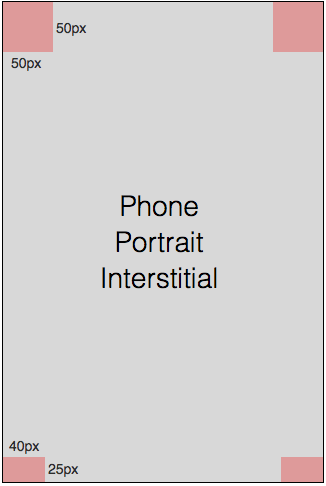
Do not include a close button in your creative. Publisher requirements for close button behavior vary considerably, and Liftoff handles this centrally to ensure compliance. Design your creative with the understanding that a 50x50px region in each top corner may be obscured by the close button.
Watermarks
Your creative may also have small elements in the corners to meet regulatory requirements. The image below shows a 320x480px creative with the areas that may be obscured highlighted in red. This applies to creatives of all sizes.
Video encoding
Videos should be provided in .mp4 format with the moov atom placed at the start of the file.
Fonts
The default font on Android is Roboto; on iOS it is Helvetica Neue. When Liftoff renders your creative on a live device, the document body font will be set to the appropriate platform default with fallbacks. To preview your creative in the browser as it would appear on device, install and configure these fonts within the creative itself.
Recommendations
Asset file sizes
Keep your creative as lean as possible. Larger files load more slowly on mobile networks and increase the chance of a poor user experience or failed delivery. Liftoff does not process or optimize your assets — file size management is your responsibility.
| Asset type | Maximum |
|---|---|
| HTML | Up to 5MB |
| Video | Up to 300MB |
| Image | Up to 10MB |
Creative sizing
- Interstitial (full-screen) creatives should render correctly across a range of screen sizes.
- Make your creative responsive to both portrait and landscape orientations where possible.
Support
If you have questions about creative integration, contact your Liftoff Account Manager.
Comments
0 comments
Article is closed for comments.