
Tracking for in-app advertising for eCommerce requires two scripts on your Shopify store:
- The Liftoff pixel, added through Shopify's Customer Events system. This records shopping activity: page views, product views, add-to-cart, and purchases. Liftoff uses these events to measure your campaign and to optimize toward users likely to buy.
- The Liftoff theme script, added to your theme layout.
Before you start, you will need:
- Admin access to your Shopify store
- Your Liftoff pixel ID, which your Account Manager provides
- Confirmation that your storefront is supported — see the FAQ below
Step 1: Add the Liftoff pixel through Customer Events
- In your Shopify admin, go to Settings → Customer events.
- Click Add custom pixel.
- Give the pixel a name, for example
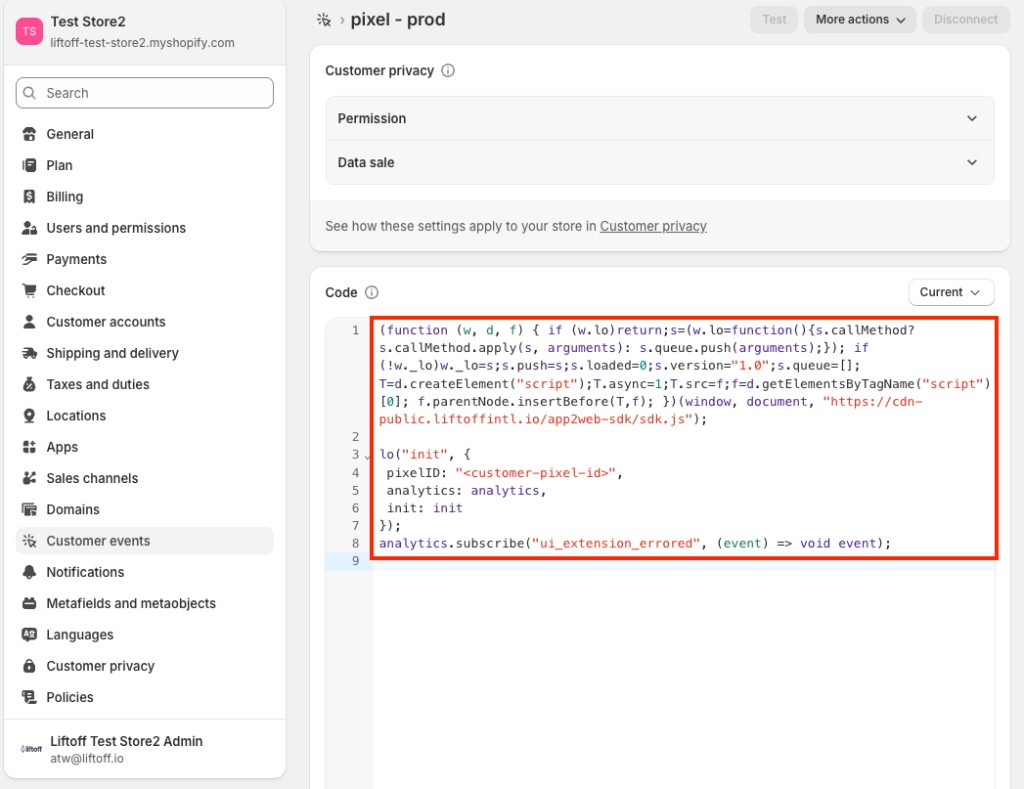
Liftoff Pixel. - Paste the following into the code editor, replacing
<customer-pixel-id>with the pixel ID your Account Manager provided:
(function (w, d, f) { if (w.lo)return;s=(w.lo=function(){s.callMethod? s.callMethod.apply(s, arguments): s.queue.push(arguments);}); if (!w._lo)w._lo=s;s.push=s;s.loaded=0;s.version="1.0";s.queue=[]; T=d.createElement("script");T.async=1;T.src=f;f=d.getElementsByTagName("script")[0]; f.parentNode.insertBefore(T,f); })(window, document, "https://cdn-public.liftoffintl.io/app2web-sdk/sdk.js");

lo("init", {
  pixelID: "<customer-pixel-id>",
  analytics: analytics,
  init: init
});
analytics.subscribe("ui_extension_errored", (event) => void event);- Click Save, then Connect to publish the pixel.
Step 2: Add the Liftoff theme script
In your Shopify admin, go to Online Store → Themes.
On your active theme, click … then Edit code.
Open
layout/theme.liquid.- Paste the following immediately before the closing
</head>tag, and click Save:
<script>
(function (w, d, u) {
  if (w.__loShopifyDA) return;
  w.__loShopifyDA = 1;
  var s = d.createElement("script");
  s.async = 1;
  s.src = u;
  var f = d.getElementsByTagName("script")[0];
  f.parentNode.insertBefore(s, f);
})(
  window,
  document,
  "https://cdn-public.liftoffintl.io/app2web-da/liftoff-da.js"
);
</script>
Step 3: Tell your Account Manager
Let your Account Manager know once both steps are complete. We will verify that events are being received correctly before your campaign launches.
Frequently asked questions
What types of setups are not currently supported?
The Liftoff pixel must be installed directly through Shopify's native Customer Events system. The following are not currently supported:
- Third-party tag managers, including Google Tag Manager.
- Subdomain-hosted storefronts that route to a non-Shopify platform. The pixel will not fire on those pages.
If you are not sure whether your setup is supported or need additional assistance, check with your Account Manager before installing.
Does the pixel slow down my store?
No. The pixel loads asynchronously and is extremely lightweight. It runs inside Shopify's sandboxed Customer Events system, so it has no impact on your storefront's loading speed or the shopping experience.
Does purchase tracking work with Shop Pay?
Yes. The checkout_completed event fires correctly with Shop Pay.
Some intermediate checkout events may not fire through Shop Pay's accelerated flow, but this does not affect how we measure or optimize your campaign.
Comments
0 comments
Please sign in to leave a comment.